logo logo
  • Awesome templates
  • Purchase
  • Buy More Template

Doc NAVIGATION

  • Getting Started
    • Requirements
    • What's Included
  • FriskNext Installation
  • FriskBasic Site Setting
    • Change Site Title and Favicon
    • Change Logo
  • FriskTemplate Options
    • Folder Structure
    • App Folder
    • Components Folder
    • Public Folder
    • Data Folder
    • Package.json
    • Contact Form Activation
  • FriskChange Log

Getting Started

Welcome to Sasico - SaaS Software & Tech Startup NextJs Template. We would like to thank you for choosing our template - sasico.

It’s built with the most modern tools Next.js + TypeScript + Bootstrap 5. It’s a high‑quality and well organized Next.js template specially designed to fit all the needs of AI, technology, SaaS and digital agency websites. With a wide variety of custom sections, multiple homepages and inner pages, and endless design possibilities.

It’s a very complete and highly customizable Next.js template that will help you build your own website layouts. It's simple, elegant, extensive and professional.

Requirements

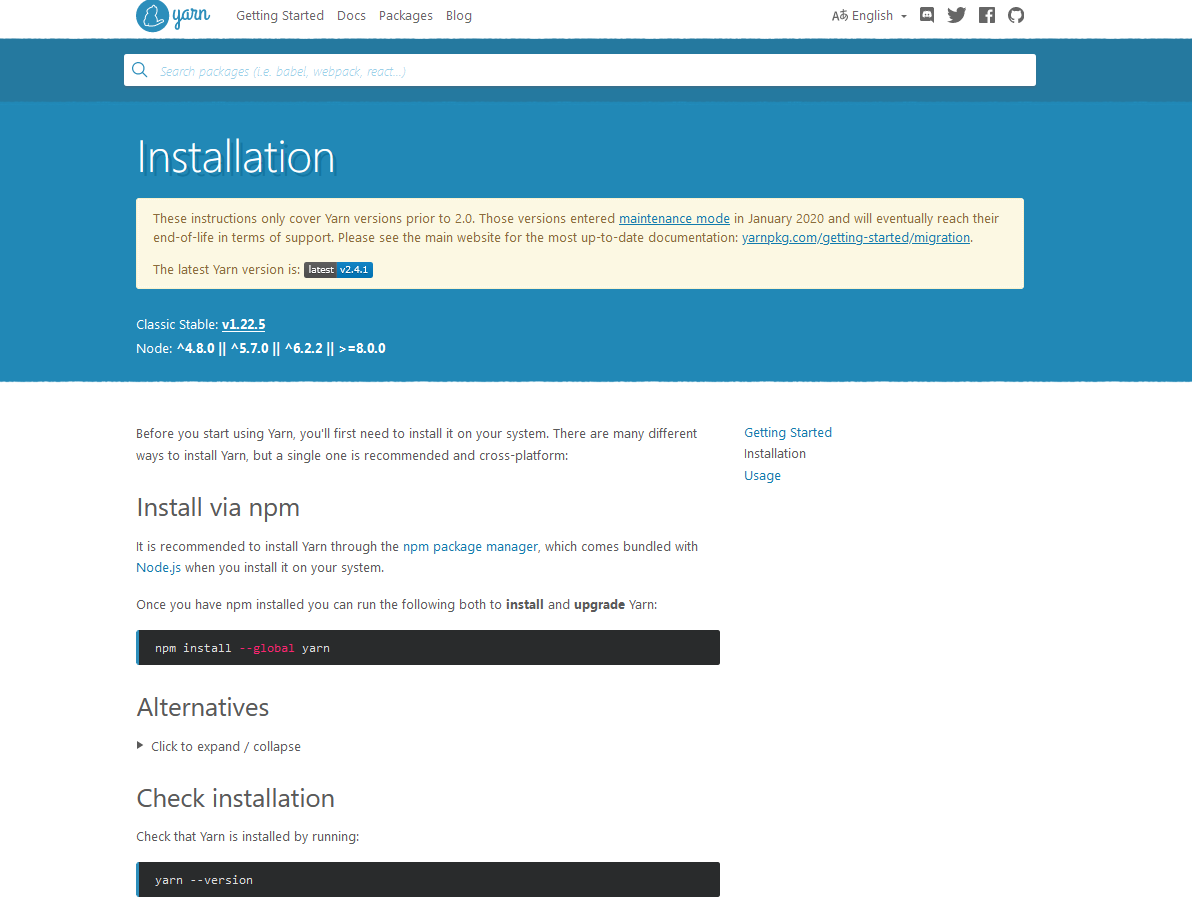
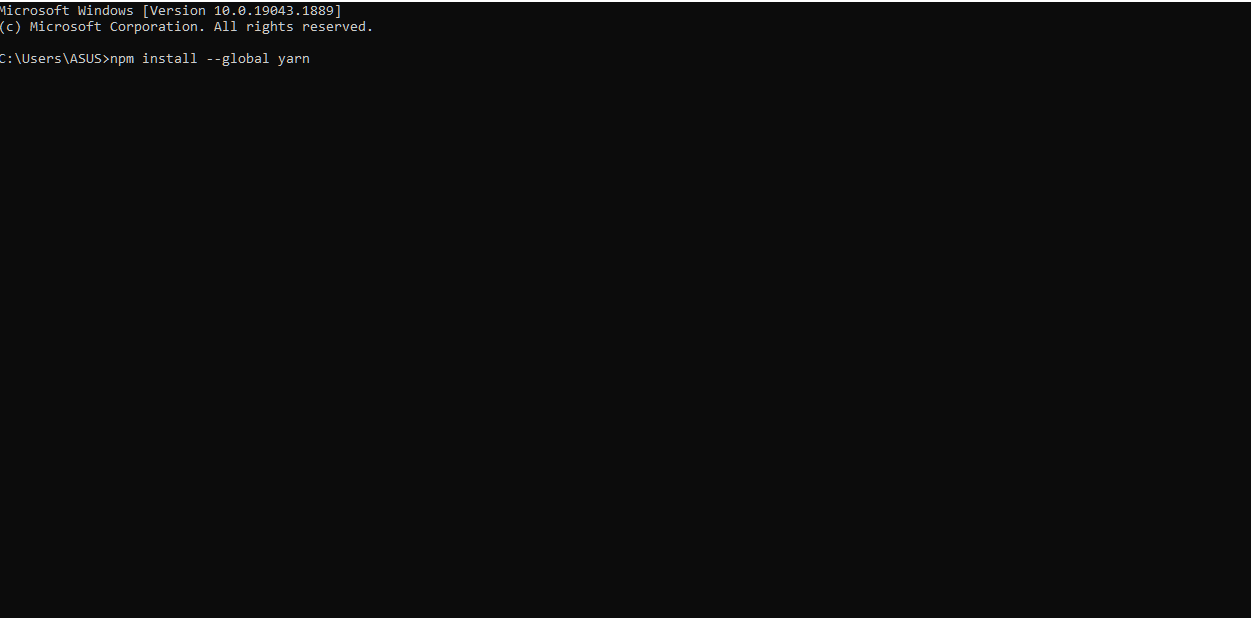
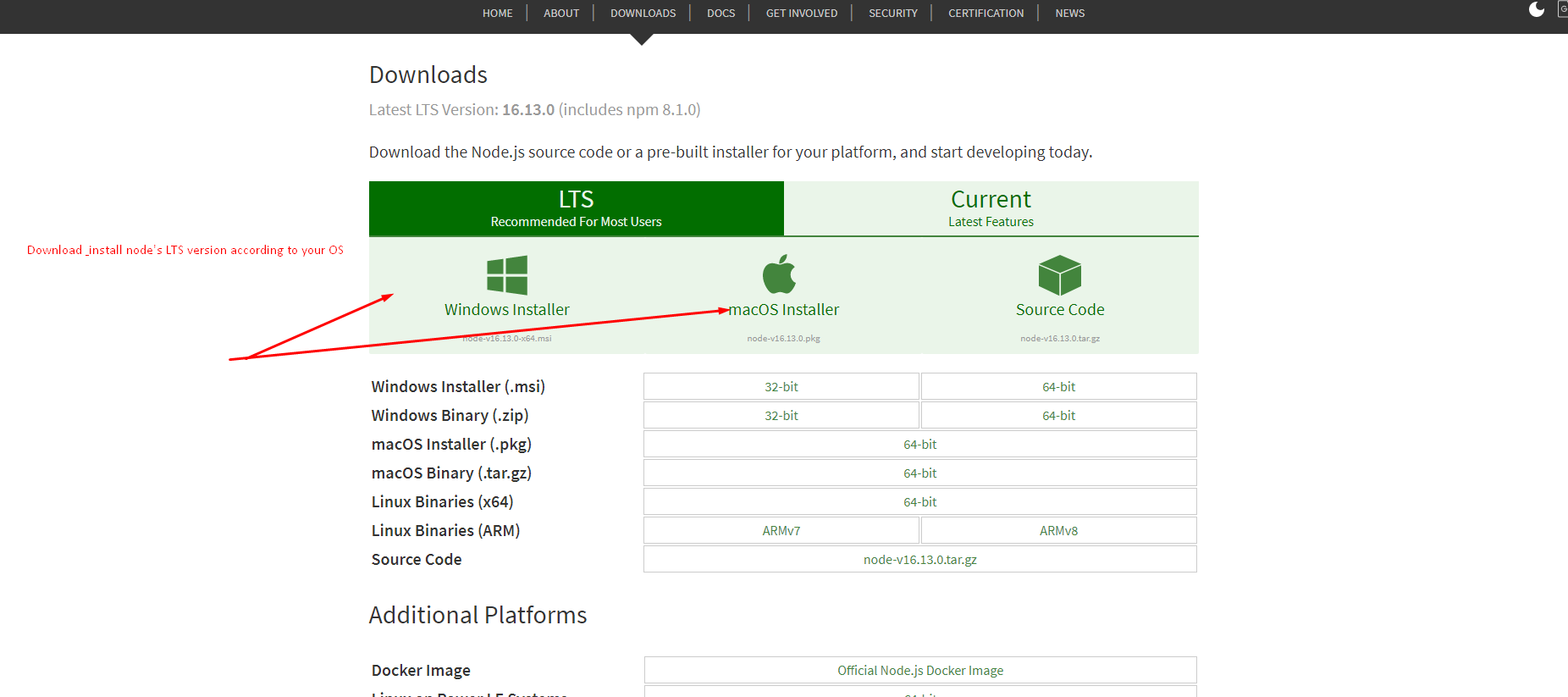
There are system requirements in order to install and setup this template and its components properly. Make sure that you already installed Node.js and npm in your pc

Recommended node and npm

installation

installation

Install npm

installation

What's Included

After purchasing sasico template on themeforest.net with your envato account, go to your download page. You can choose to download sasico template only (Installable Next.js template) or the entire sasico package. After extracting the package you will find following this files:

whats-included

You can get the following items after purchasing our template from themeforest

  • sasico - An installable Next.js template zip file. this file you need to upload
  • License - This folder contains the terms and conditions of the license.
  • Documentation - This folder contains what you are reading now :)

Next Installation

Please follow the instructions in the video to see how you can install Next on your hosting:

  1. For local host -
    1. Open you command prompt
    2. npm install
    3. npm run dev (will start the dev server at http://localhost:3000)
  2. Deploying to Netlify - https://youtu.be/M7TJeCk4iL8?si=7xXP229oNRChQykc


  1. For locally build -
    1. Open you command prompt
    2. npm run build (will build locally and generate public directory)
    3. npm run start (will start the locally build server at http://loaclhost:3000)
  2. Deploying to Vercel - https://youtu.be/BjnC_Zdj0Xk


Other Scripts
  1. Open you command prompt
  2. npm run lint (This will run ESLint and report any code style errors)

Change Site Title and Favicon

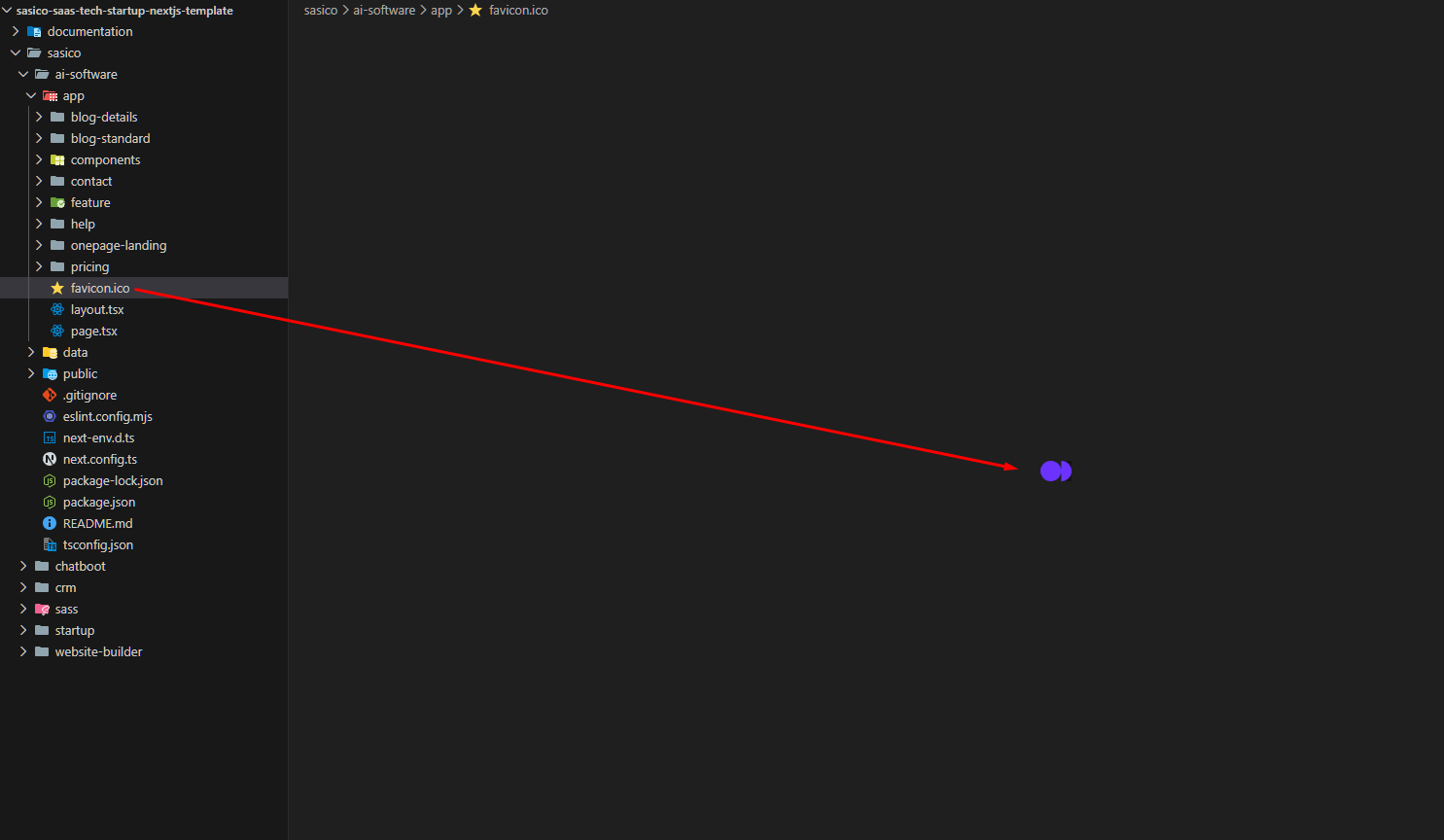
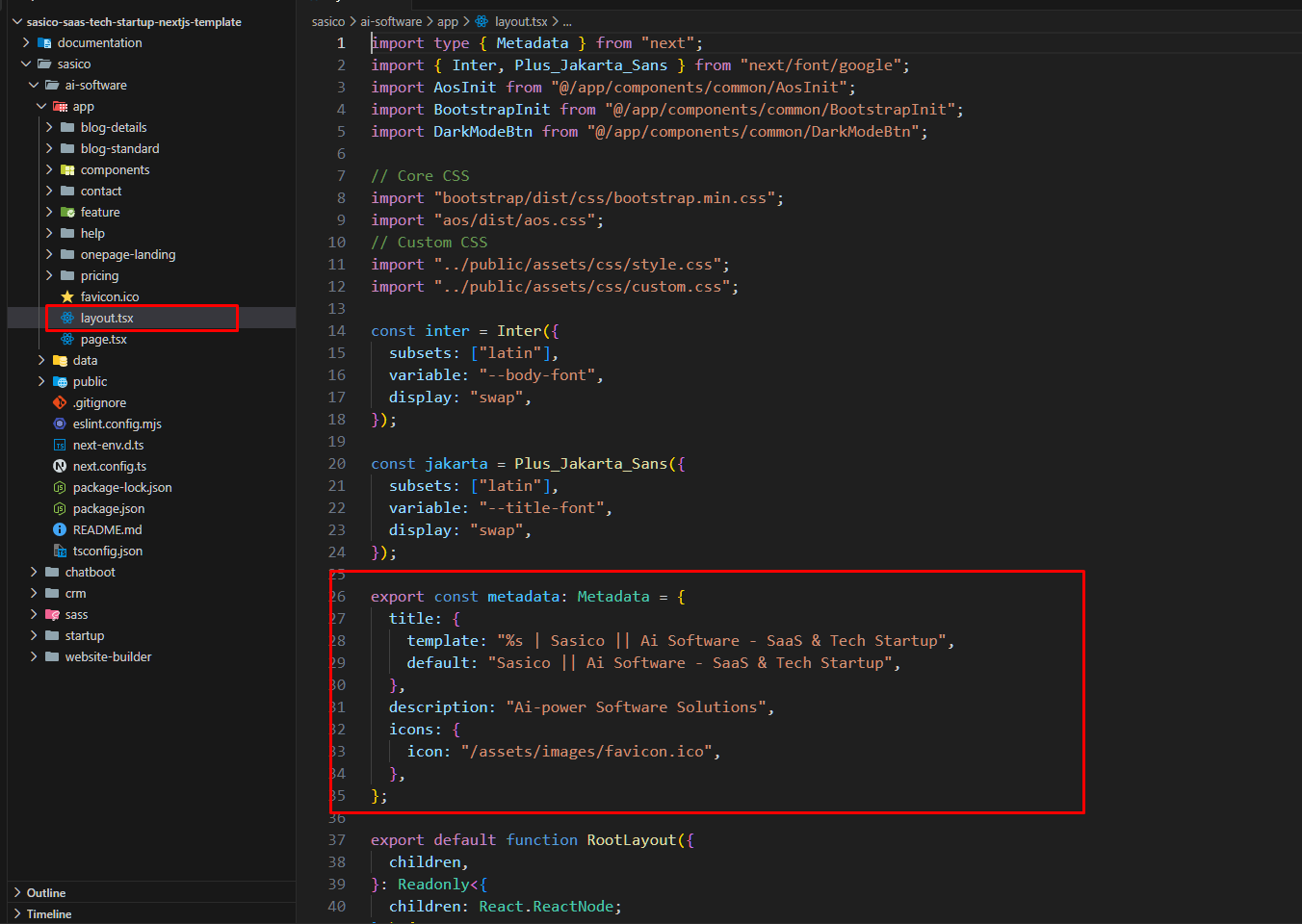
To change your Site title and Favicon open the sasico project in your editor and go to the location by following screenshot which are given bellow.

Change favicon in app/layout.tsx and public/favicon.ico
By folllowing this screenshot you can change favicon image
Change metadata title & description
By folllowing this screenshot you can change page title

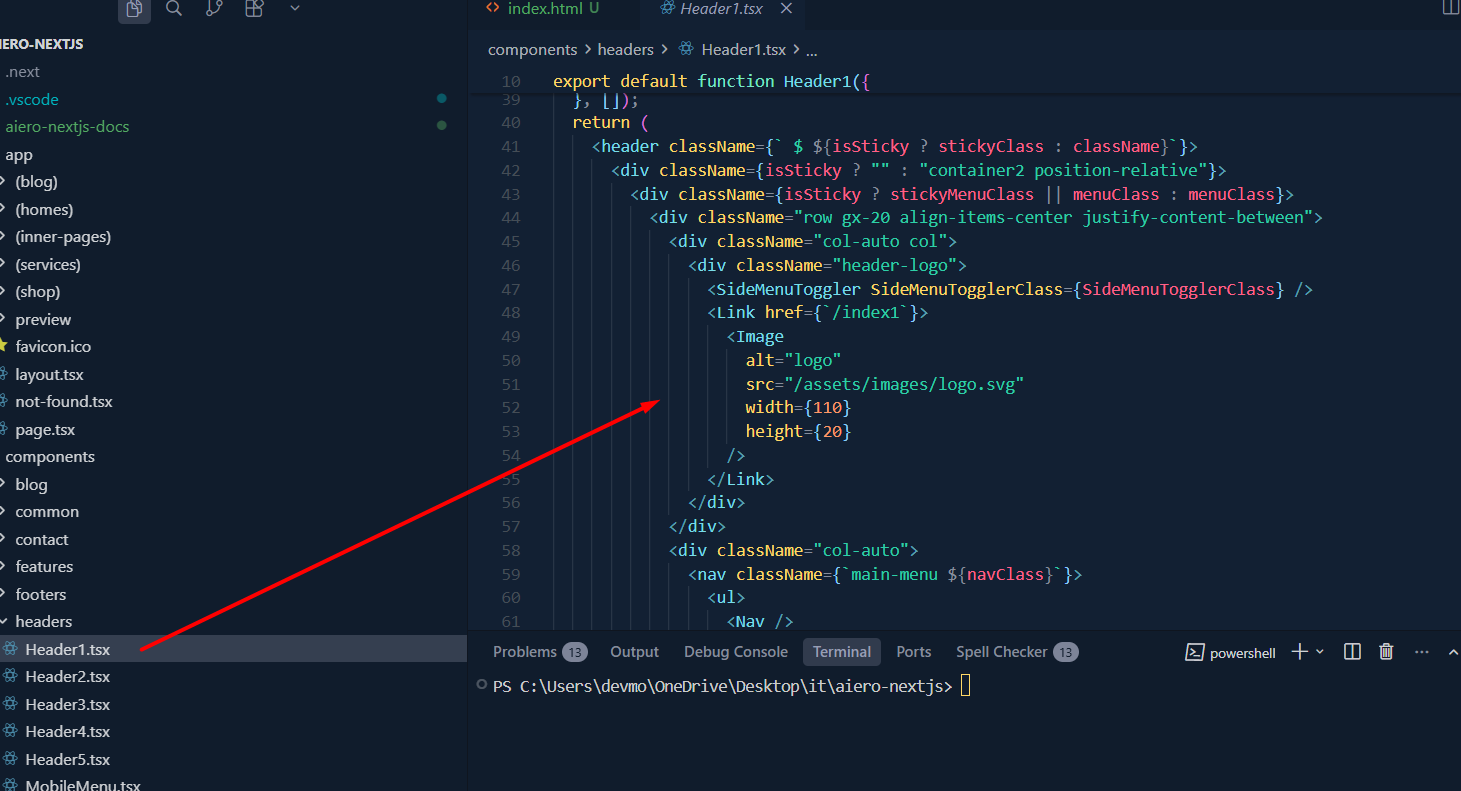
Change Logo

To change your Site logo by following screenshot

  1. From the project go to components headers
Update header logo component
By folllowing this screenshot you can change your Logo

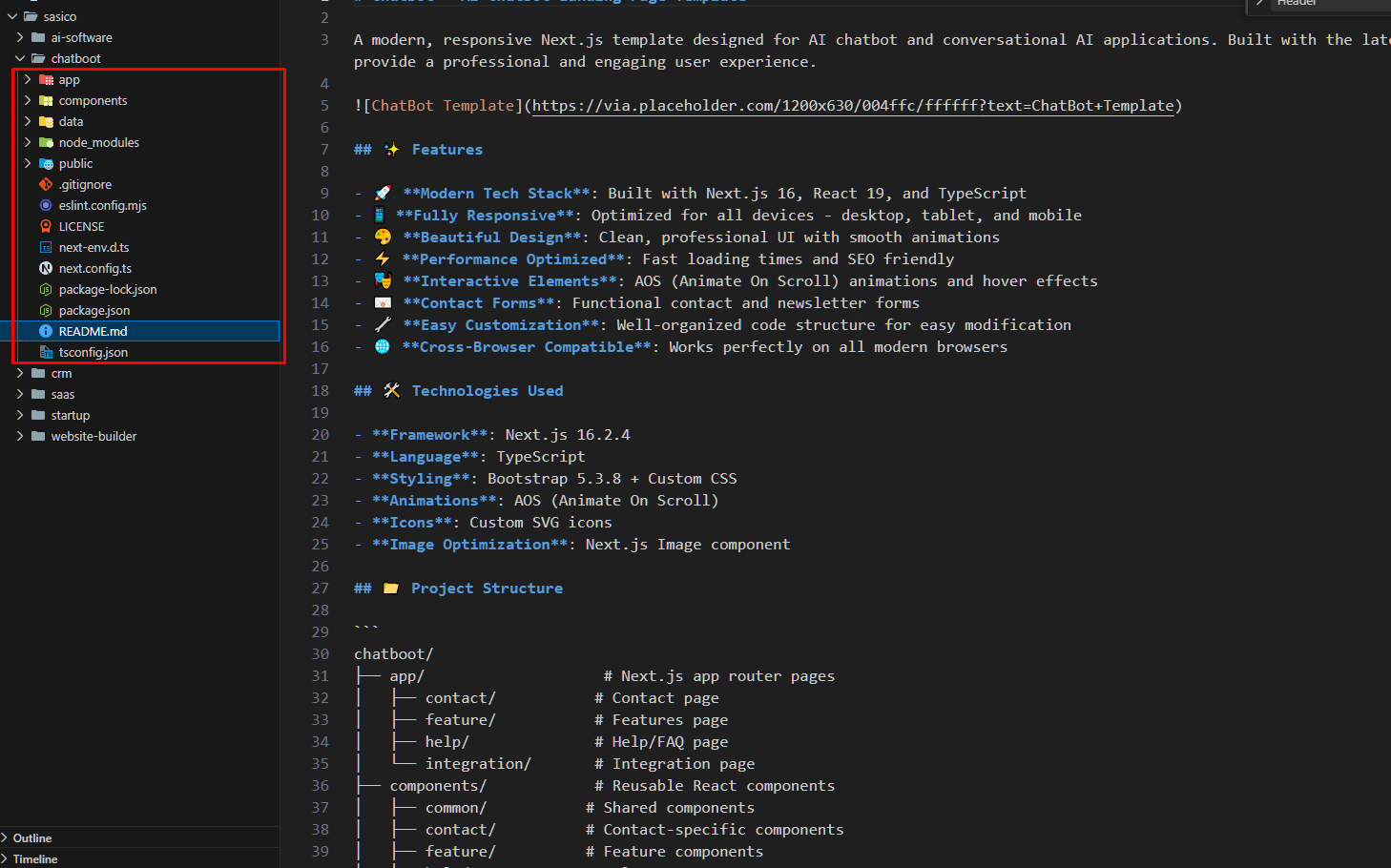
Folder Structure

To change Header Menu content by following this screenshot here.

  1. From the project go to components headers
Header structure in components/headers
Change Header Menu Content

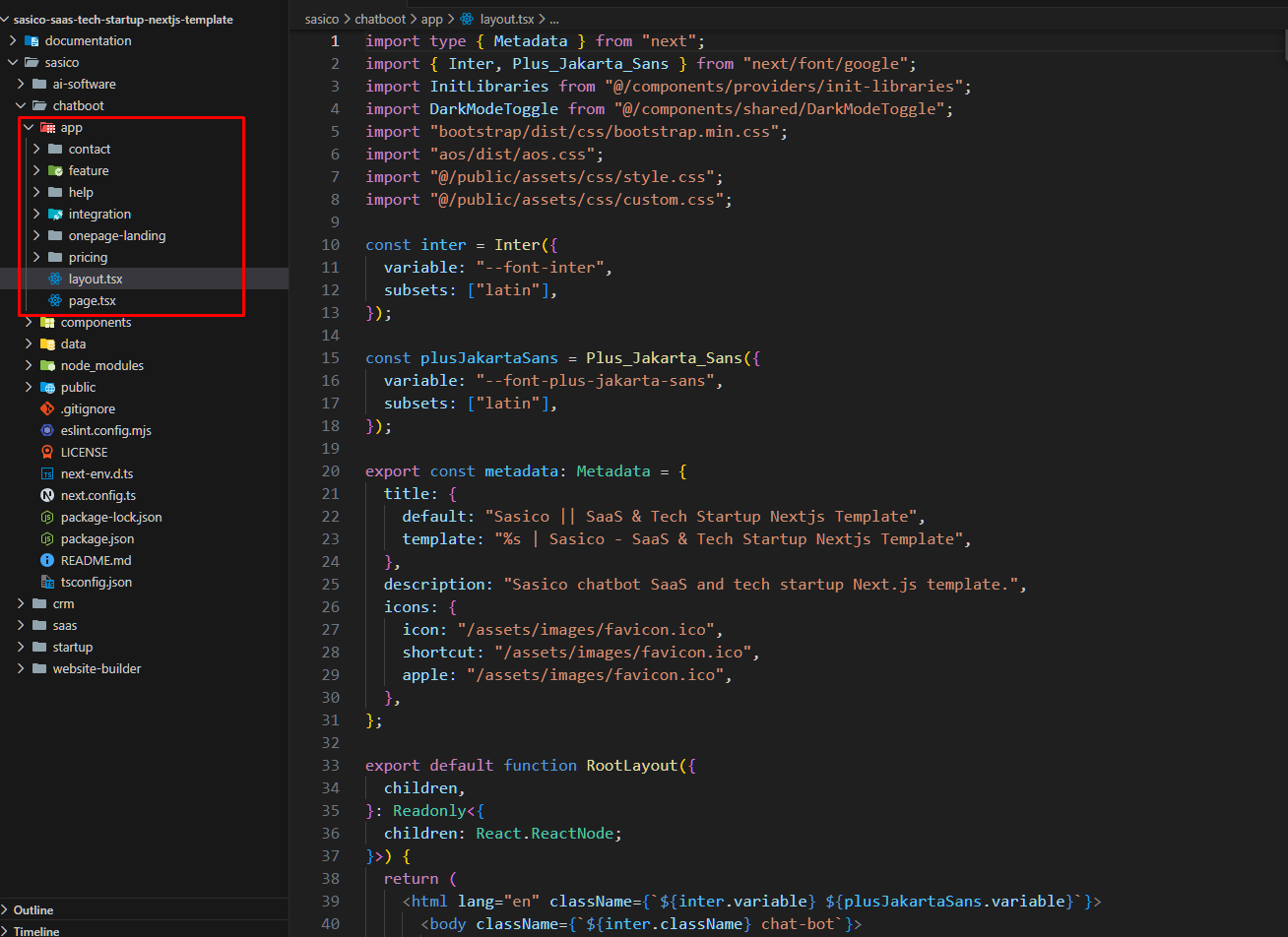
App Folder Structure

To change Hero Section content by following this screenshot here.

  1. From the root project folder go to app
Hero section component example
Change Hero Section Content

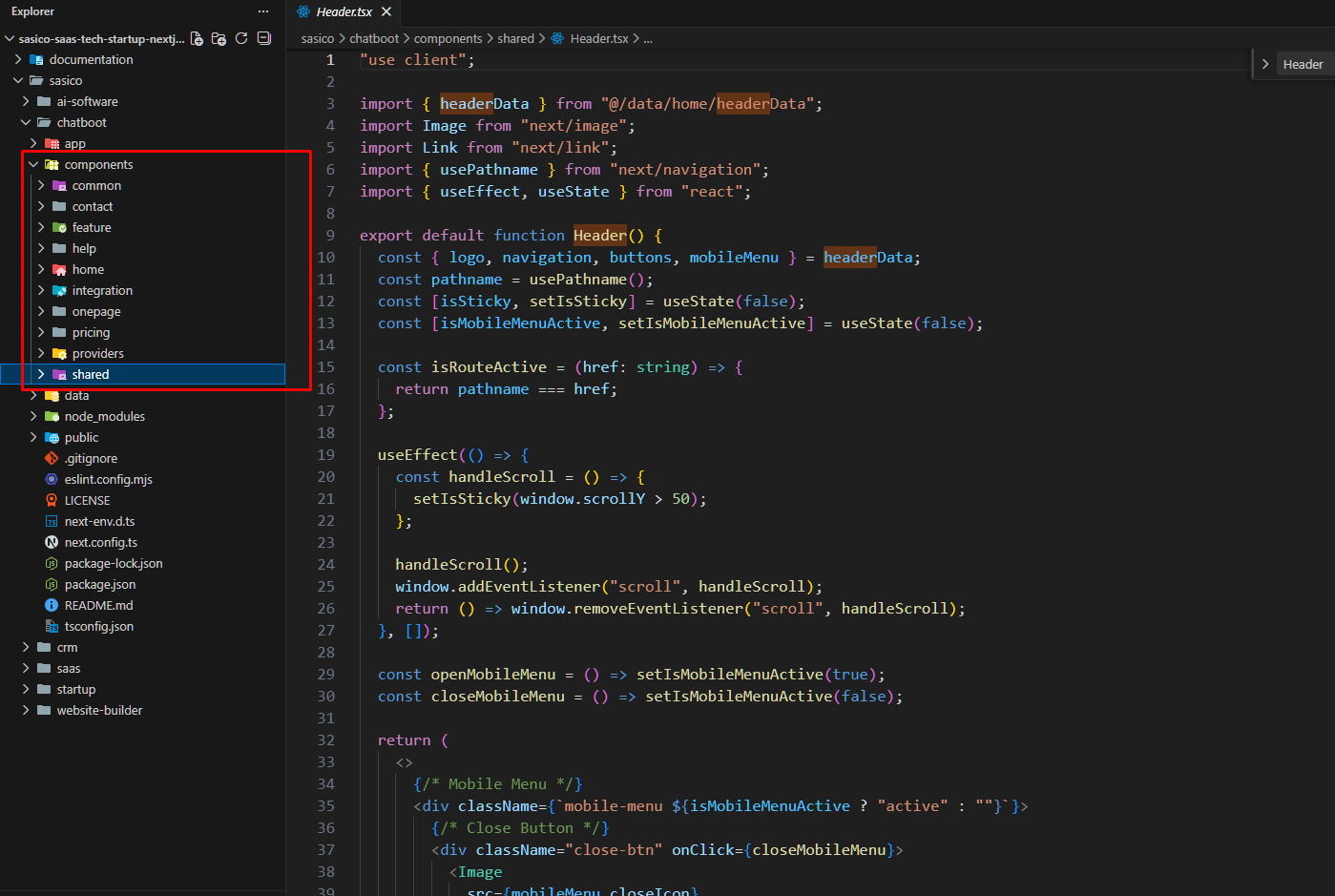
Components Folder Structure

To change Home Page and its folder content by following this screenshot here.

  1. From the root project folder go to components
Home pages under app/(homes)
Change Homepage Content you can follow this above screenshot

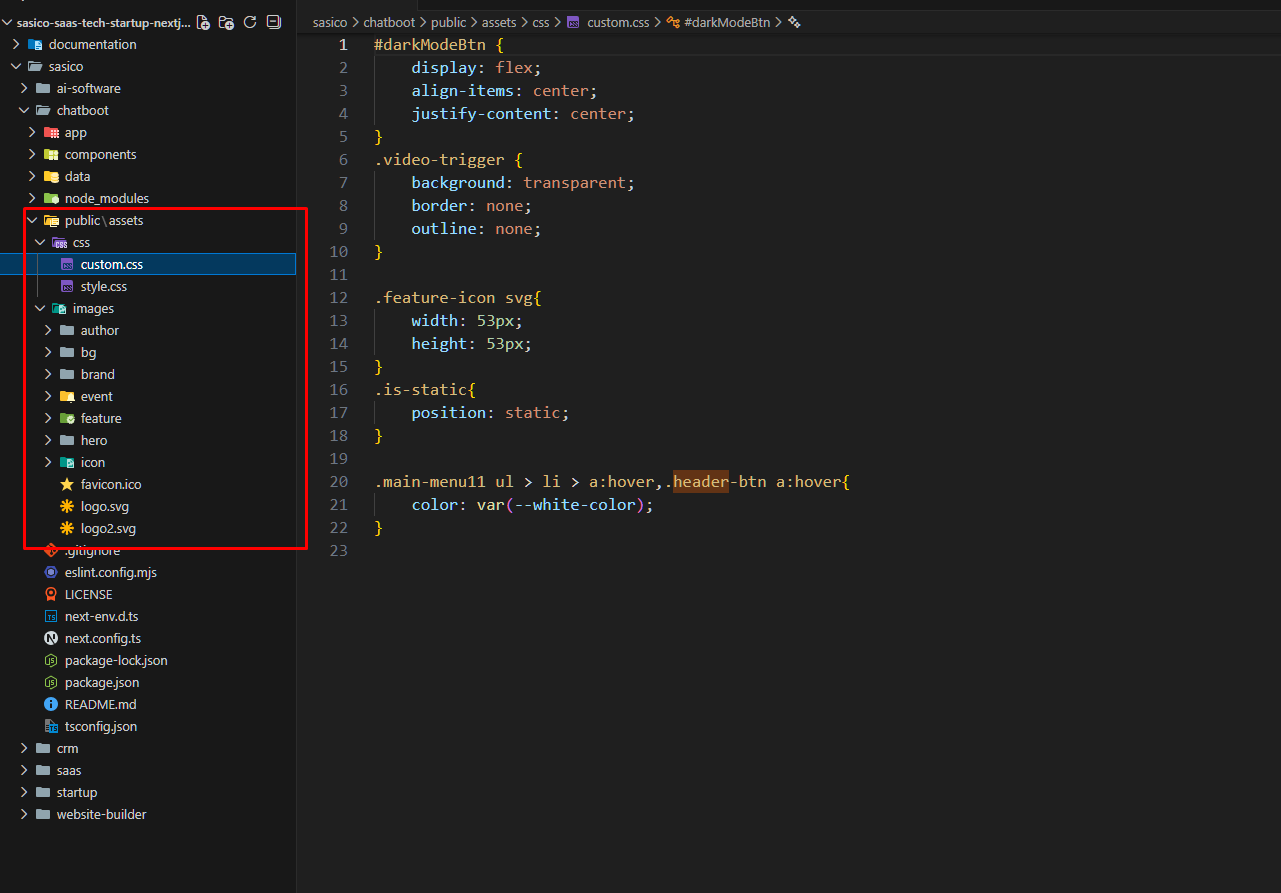
Public Folder Structure

To change public assets (images, icons, fonts) find the public/ folder in the project root.

  1. From the project go to your root project folder then find public
Services pages under app/(services)
Change Service page Content you can follow this above screenshot

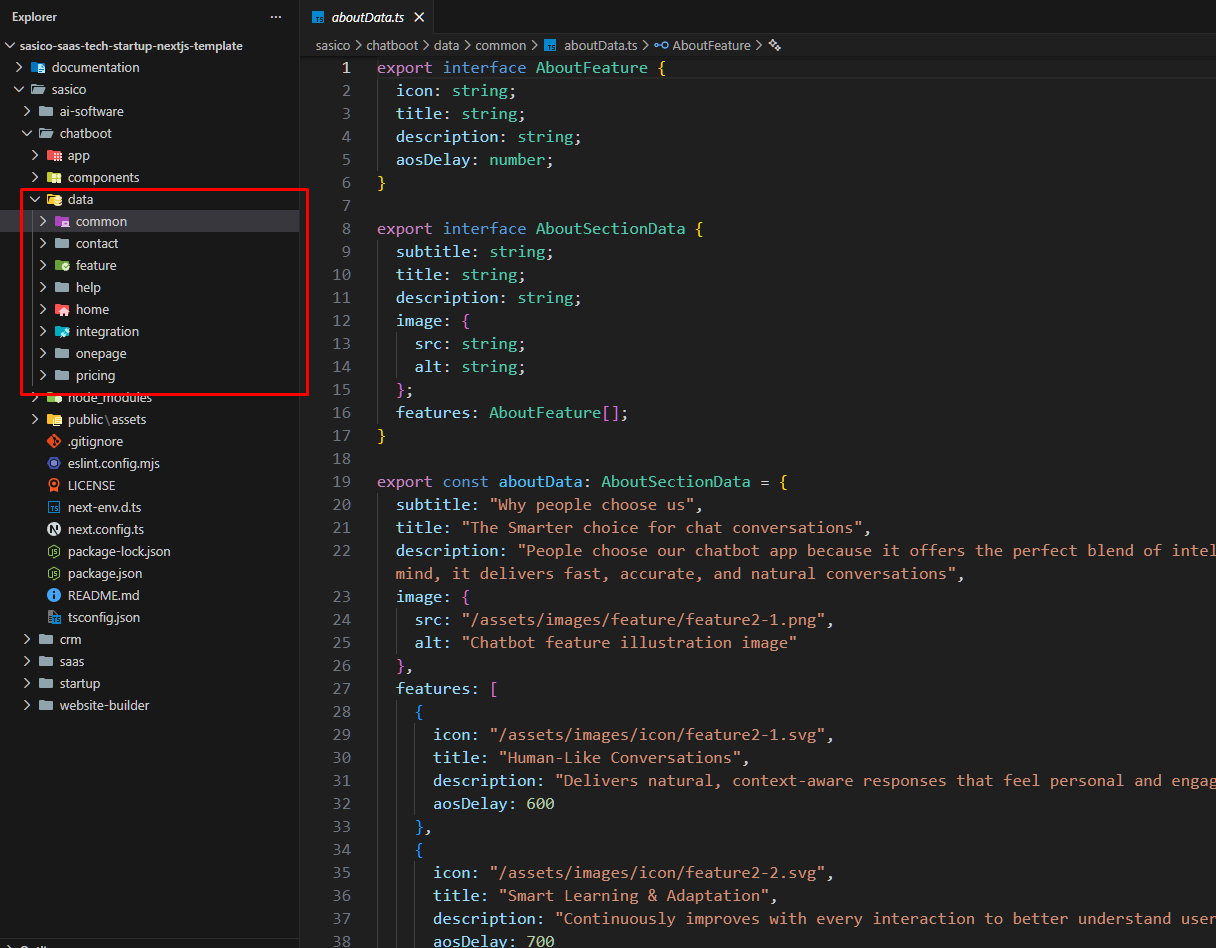
Data Folder Structure

To change demo text, links, and media replace the relevant files inside the data/ folder.

  1. From the project go to roo and find folder data
Blog pages under app/(blog)
Change Blog Content by the following screenshot

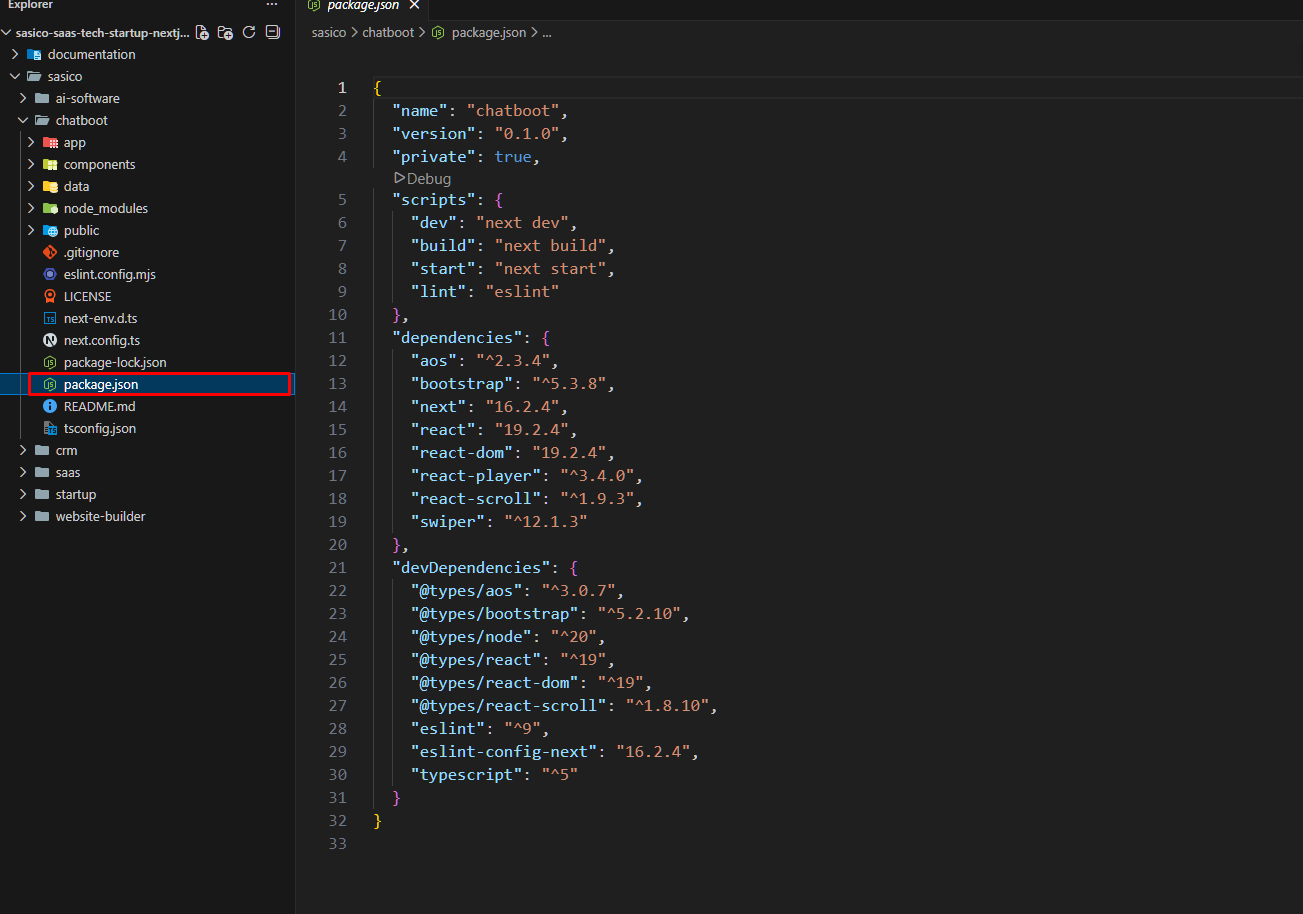
Package.json File Structure

To update project metadata, scripts, or dependencies edit the package.json file in the project root.

  1. From the project go to root path package.json
Portfolio pages under app/(inner-pages)
Change Portfolio Content by the following screenshot

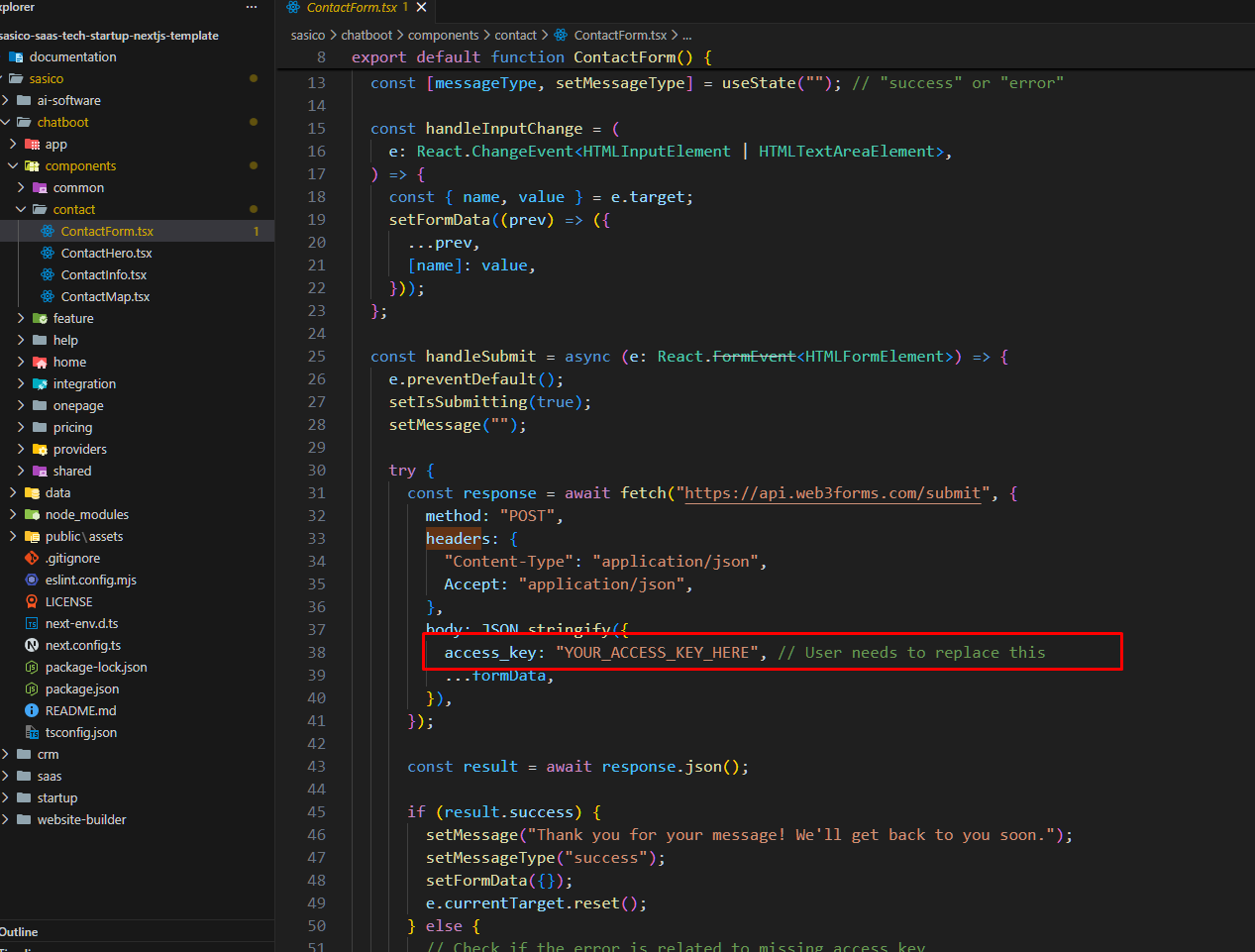
Contact Form Activation (https://web3forms.com/)

To change Contact Form access key you need to go web3forms.com and get your access key by creating your form.

  1. From the project go to components contact
Contact page under app/(inner-pages)/contact
Change Contact Content by the following screenshot

Change Log

Ib-Themes Team never stops Improving, bug fixes, and improvements. See What's New. We recommend you to read the changelog for every update.

25 May 2026

Initial release

1.2.0

New Release1) It-Solutions and Fintech Software Demo Multipage/onepage Released

20 May 2026

Initial release

1.1.0

New Release1) Analytics & Digital Agency Demo Multipage/onepage Released

19 May 2026

Initial release

1.0.0

Relese1) Item Release

Support? ibthemes21@gmail.com

If you like our product. Please Rate Us

If you need the template customization or custom development services please contact us.

Email Us

Frisk

© 2021 - 2026 All Rights Reserved by ib-themes